Claude Desktop MCP servers: config and setup
Last checked: 2026-10-14
Claude Desktop MCP connects the desktop application to external tools through local servers or remote connectors. Local servers are launched from claude_desktop_config.json; remote AIPx access is added through Claude’s connector interface. Choose the route according to where the tool runs and what data it must reach.
Add an MCP server to Claude Desktop
For a local server, open Settings → Developer → Edit Config. Add the server’s documented command and arguments, save valid JSON, then fully quit and restart Claude Desktop. The application must be able to find the executable and reach the resources it is meant to expose.
For remote AIPx tools, follow a separate sequence:
- Connect a service account in AIPx and create an agent for the desktop workflow.
- Review which accounts and tools the agent may use.
- Copy
https://dash.aipx.run/mcp/AGENT_ID, using your actual dashboard agent identifier. - Open Customize → Connectors → + Add → Add custom connector in Claude.
- Enter the URL and complete the connection’s OAuth sign-in.
- Try a known read in a conversation with the connector available.
Do not paste a bare remote URL into a legacy local command entry. The local configuration starts processes; the connector interface manages the remote connection. Anthropic documents custom remote connectors, while the MCP documentation explains connecting local servers.
Claude Desktop MCP config: claude_desktop_config.json
The standard configuration paths differ by operating system:
| System | Configuration path |
|---|---|
| macOS | ~/Library/Application Support/Claude/claude_desktop_config.json |
| Windows | %APPDATA%\Claude\claude_desktop_config.json |
Using Edit Config avoids creating a similarly named file in the wrong directory. Back up an existing configuration before modifying it, and merge a new server into its existing mcpServers object rather than replacing other entries.
This local filesystem example starts the reference server with one allowed directory:
{
  "mcpServers": {
    "filesystem": {
      "command": "npx",
      "args": [
        "-y",
        "@modelcontextprotocol/server-filesystem",
        "/Users/yourname/Documents/agent-notes"
      ]
    }
  }
}
Replace the path with an existing directory you intend to expose. On Windows, use the appropriate directory and valid JSON escaping. This example also requires the runtime providing npx; it is a local installation requirement, unrelated to using the hosted AIPx URL.
The folder boundary matters. Passing your entire home directory can expose mail exports, credentials, personal documents and unrelated repositories. Pick a small working folder and review the server’s capabilities before granting access. The configuration declares a launch command; trusting it means trusting code that runs on your computer.
After saving, quit the application completely and reopen it. Closing a window may leave its process running. If the server is unavailable afterward, inspect the command, arguments and the application’s environment before changing permissions.
Local servers vs remote connectors in Claude Desktop
Desktop is the place where you interact, but it does not guarantee every connection originates on your machine. Claude’s remote connector requests come from Anthropic’s cloud, including when the conversation is in the desktop app.
| Property | Local desktop server | Remote connector |
|---|---|---|
| Runs where | Your local process environment | A reachable hosted endpoint |
| Added through | Developer configuration | Customize → Connectors |
| Typical transport | stdio | Remote HTTP |
| Data reach | Allowed files or locally accessible systems | Systems reachable by the hosted server |
| Main setup concern | Runtime, PATH and allowed directories | Network reachability and authentication |
| Available in browser automatically | No | Governed by the remote connector connection |
A local server does not transfer to claude.ai or Cowork simply because the same account uses those products. A remote cloud connection cannot reach your laptop’s localhost without an explicit network route. The remote MCP guide covers hosting and reachability decisions in more detail.
Best MCP servers for Claude Desktop
Desktop workflows often involve documents, meetings and task planning. Pick a remote integration when the information already lives in a service, and a local server when the actual task involves private files.
| Integration | Practical desktop task | Permission to review |
|---|---|---|
| Notion | Find and compare project notes | Workspace page visibility |
| Gmail | Summarize a specific conversation | Mail reading and outgoing-message rules |
| Google Calendar | Check meeting context | Work and personal calendar separation |
| Google Sheets | Read a planning worksheet | Confirmation before edits |
| Linear | Turn a meeting decision into issue context | Issue changes |
| GitHub | Read a discussion about implementation | Repository writes |
| Jira | Consult a ticket’s acceptance criteria | Relevant account access |
| Confluence | Retrieve team documentation | Space and page access |
| Granola | Consult meeting notes | Which meeting content may be disclosed |
| Things 3 | Work with a personal task workflow | Task-creation capability and setup limits |
The curated server list separates local and hosted choices. Avoid assuming a service’s MCP connection has the same capabilities as its full graphical application. The tool inventory available to your account is the actual boundary.
Give Claude Desktop scoped access
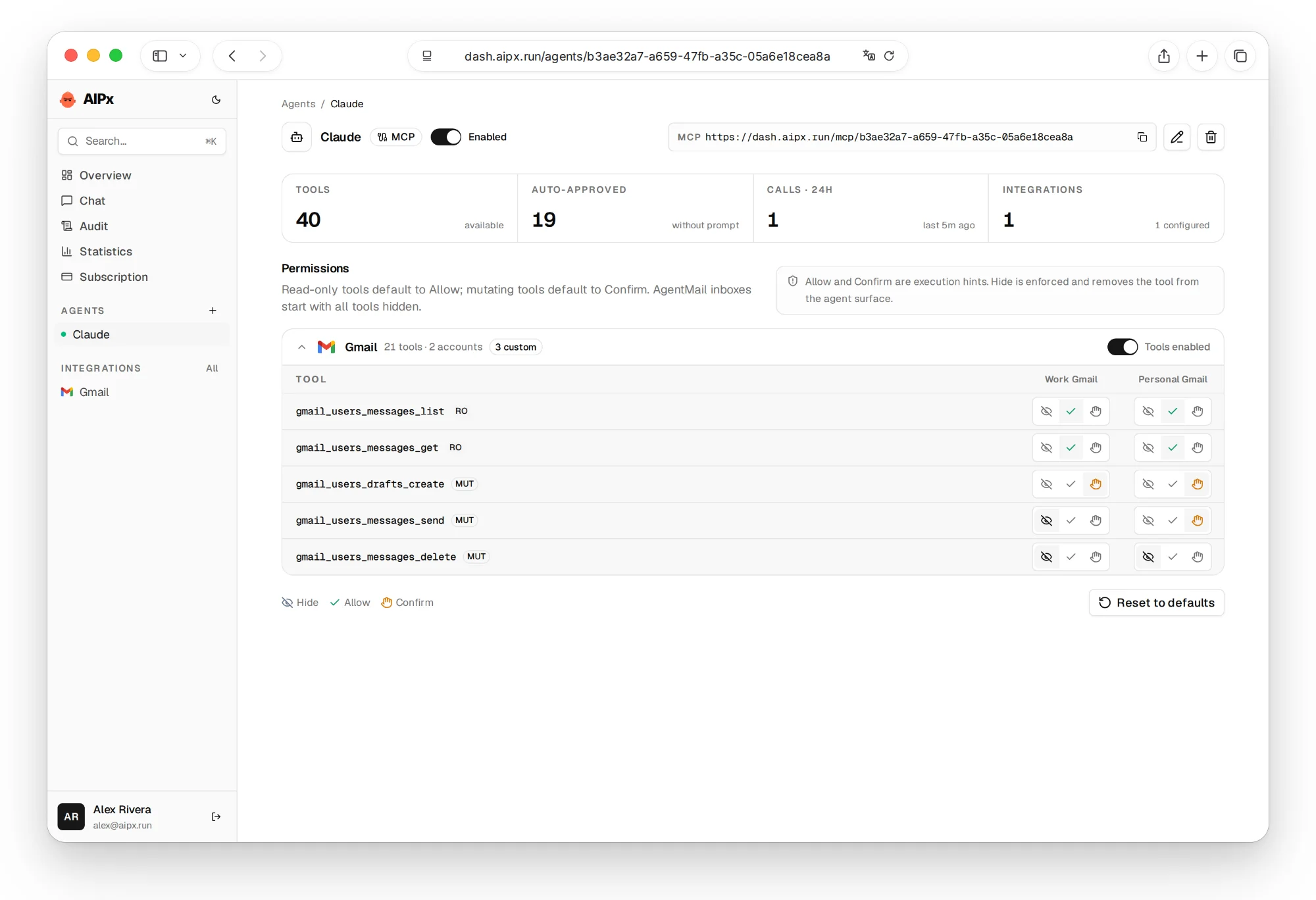
Create an AIPx agent for the desktop conversation’s purpose. A planning assistant may need a work calendar and notes, while a code-review assistant needs GitHub and a tracker. Connect accounts once, then assign different rules to those agents.
Allow and Confirm communicate execution preferences to the client, with Confirm requesting review. The actual approval step depends on the client. Hide is enforced server-side and withholds access. Set those rules per tool and per account. A personal Gmail account can remain hidden even while work Gmail reading is allowed. Keep outgoing mail and shared document edits on Confirm until you have reviewed the workflow.
Reads can also disclose confidential information. Restricting writes alone does not make a broad account connection appropriate. Review which accounts supply conversation context, and inspect the audit’s account, tool, agent, inputs, result and time after your first task. The desktop application controls how it honors AIPx’s Confirm metadata; do not treat that hint as a universal server-side approval gate.
Free supports three connected accounts and one agent. Pro is $3 per month with unlimited accounts and agents plus Pro integrations, while service subscriptions and API limits still apply. Use the general Claude connection guide for browser connectors and Claude Code setup for terminal configuration.
Troubleshooting
A local startup failure usually needs a local diagnosis: validate JSON, verify the executable is installed, check the allowed path and fully restart Desktop. Do not reconnect remote OAuth to fix a command that cannot launch. A program available in your terminal may be absent from the environment used by a graphical application.
For a remote connector, check the reachable URL and authentication instead. If it connects but offers fewer tools than expected, review the agent’s Hide settings and refresh discovery. An upstream provider denial requires checking the connected service account, not editing the local filesystem example.
A direct official connector is often simpler when you need one service. Local tools give you control over private-file boundaries; AIPx introduces another hosted operator in exchange for shared accounts, permissions and an audit across clients.
Connect your tools to Claude Desktop
Desktop tasks can also involve these supported accounts. Choose the data source for the conversation, and keep work documents and private health or nutrition information in separate agent boundaries where appropriate.
- Development and infrastructure: Sentry error reports, PostHog analytics, Atlassian Rovo tools, Supabase project tools, Cloudflare account tools, DigitalOcean infrastructure.
- Mail, notes and planning: Apple Calendar access, Fireflies transcripts, AgentMail inbox tools.
- Payments: Stripe billing tools, Paddle subscription tools.
- Research and campaign data: Exa web search, Google Maps data, X account tools, Yandex Direct campaigns.
- Personal health and nutrition: WHOOP recovery data, Withings measurements, Hevy workouts, Numon nutrition reports.
Choose one local folder or one remote account for the first test, depending on the task. Keep that boundary easy to inspect before widening it. Connect free.
FAQ
Does Claude Desktop support MCP?
Yes. Claude Desktop can launch local MCP servers and use remote connectors. Those routes have different configuration and network boundaries.
Where is claude_desktop_config.json stored?
On macOS it is in ~/Library/Application Support/Claude/; on Windows it is in %APPDATA%\Claude\. Open Settings → Developer → Edit Config to locate the application's file.
Can I add an AIPx URL to the local desktop config?
Use Claude's remote connector interface for AIPx. The local configuration describes commands and arguments for processes launched on your machine, rather than a bare remote URL.
Why does my local MCP server not start?
Check valid JSON, the executable, its runtime and the configured directory. Fully restart Claude Desktop after editing the file; a terminal command working elsewhere does not prove the desktop process can find it.
Can a Claude remote connector access localhost?
No, not without a network route. Remote connector traffic originates from Anthropic's cloud, even in Desktop. Use a local server for local files or a reachable authenticated endpoint for remote tools.